Quickstart
Welcome to ratatui_ruby! This guide will help you get up and running with your first Terminal User Interface in Ruby.
Installation
Add this line to your application’s Gemfile:
gem "ratatui_ruby"
And then execute:
bundle install
Or install it yourself as:
gem install ratatui_ruby
Basic Application
Here is a “Hello World” application that demonstrates the core lifecycle of a ratatui_ruby app.
require "ratatui_ruby"

# 1. Initialize the terminal
RatatuiRuby.init_terminal

begin
  # The Main Loop
  loop do
    # 2. Create your UI (Immediate Mode)
    # We define a Paragraph widget inside a Block with a title and borders.
    view = RatatuiRuby::Paragraph.new(
      text: "Hello, Ratatui! Press 'q' to quit.",
      align: :center,
      block: RatatuiRuby::Block.new(
        title: "My Ruby TUI App",
        borders: [:all],
        border_color: "cyan"
      )
    )

    # 3. Draw the UI
    RatatuiRuby.draw(view)

    # 4. Poll for events
    event = RatatuiRuby.poll_event
    if event && event[:type] == :key && event[:code] == "q"
      break
    end
  end
ensure
  # 5. Restore the terminal to its original state
  RatatuiRuby.restore_terminal
end
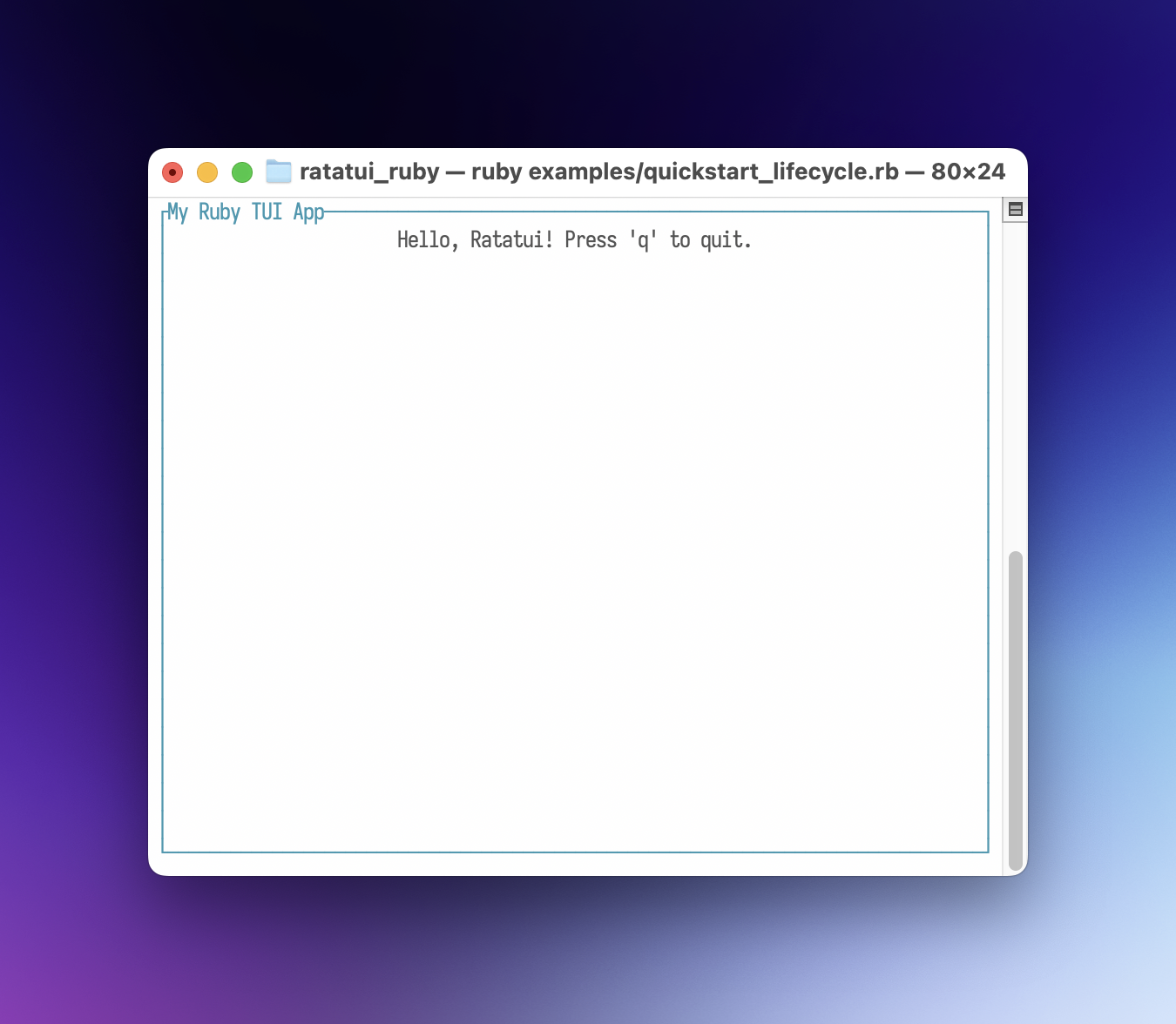 Application Screenshot
How it works
-
RatatuiRuby.init_terminal: Enters raw mode and switches to the alternate screen. -
Immediate Mode UI: On every iteration of the loop, you describe what the UI should look like by creating
Dataobjects (likeParagraphandBlock). -
RatatuiRuby.draw(view): The Ruby UI tree is passed to the Rust backend, which renders it to the terminal. -
RatatuiRuby.poll_event: Checks for keyboard, mouse, or resize events. -
RatatuiRuby.restore_terminal: Crucial for leaving raw mode and returning the user to their shell properly. Always wrap your loop in abegin...ensureblock to guarantee this runs.
DSL
A small DSL is provided for convenience when writing scripts.
require "ratatui_ruby"

# 1. Initialize the terminal, start the main loop, and ensure the terminal is restored.
RatatuiRuby.main_loop do |tui|
  # 2. Create your UI with methods instead of classes.
  view = tui.paragraph(
    text: "Hello, Ratatui! Press 'q' to quit.",
    align: :center,
    block: tui.block(
      title: "My Ruby TUI App",
      borders: [:all],
      border_color: "cyan"
    )
  )

  # 3. Use RatatuiRuby methods, too.
  tui.draw(view)
  event = tui.poll_event

  if event && event[:type] == :key && event[:code] == "q"
    break
  end
end
How it works
-
RatatuiRuby.main_loop: This helper method manages the entire terminal lifecycle for you. It initializes the terminal before the block starts and ensuresrestore_terminalis called when the block exits (even if an error occurs). -
Widget Shorthand: The block yields a special DSL object (here named
tui). This object provides factory methods for every widget, allowing you to writetui.paragraph(...)instead of the more verboseRatatuiRuby::Paragraph.new(...). -
Method SHorthand: The DSL object also provides aliases for module functions of
RatatuiRuby, allowing you to writetui.draw(...)instead of the more verboseRatatuiRuby::draw(...).
Examples
To see more complex layouts and widget usage, check out the examples/ directory in the repository.
Analytics
Demonstrates the use of Tabs and BarChart widgets with a simple data-switching mechanism.
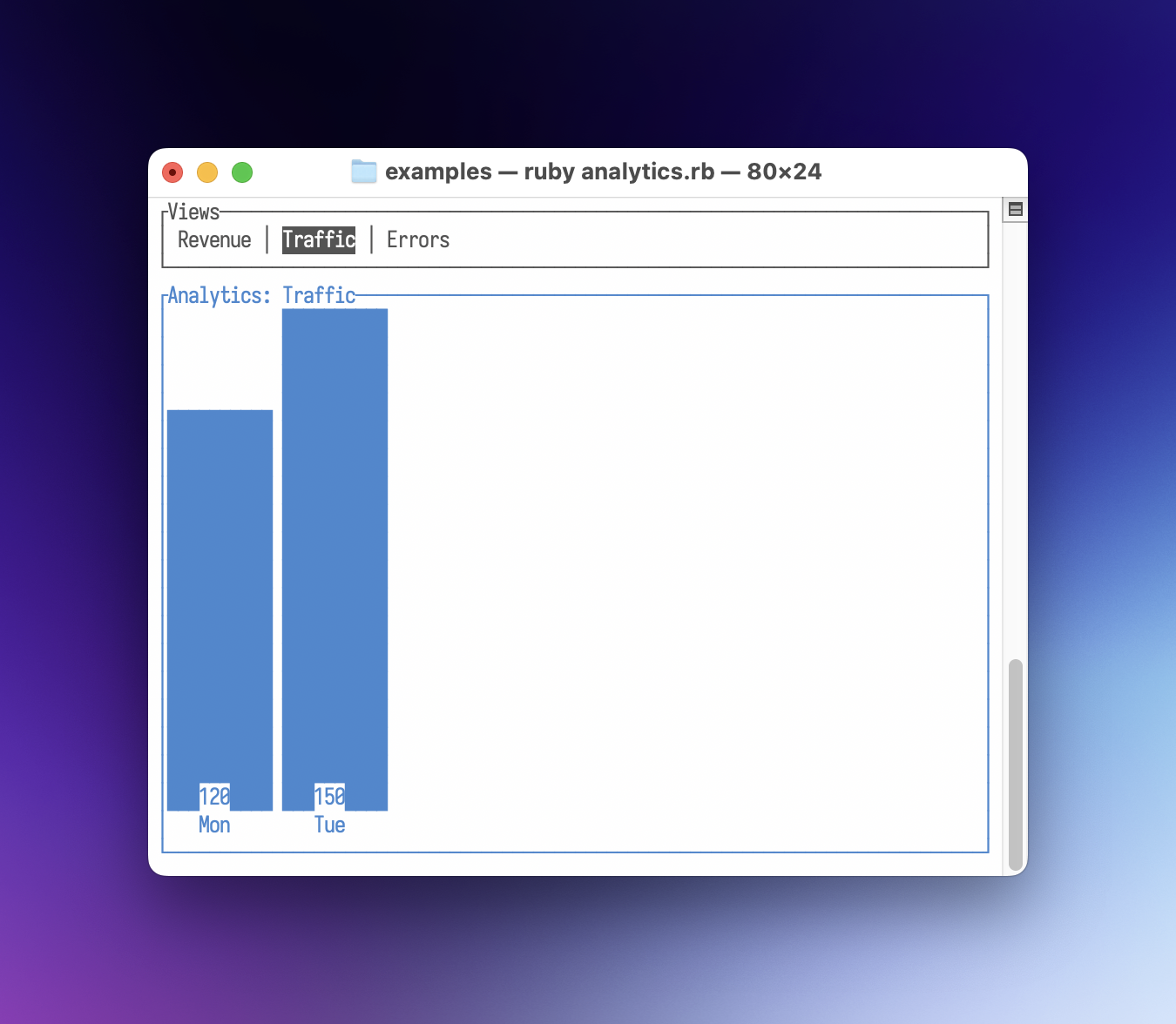 Screenshot
Box Demo
A simple demonstration of Block and Paragraph widgets, reacting to arrow key presses to change colors.
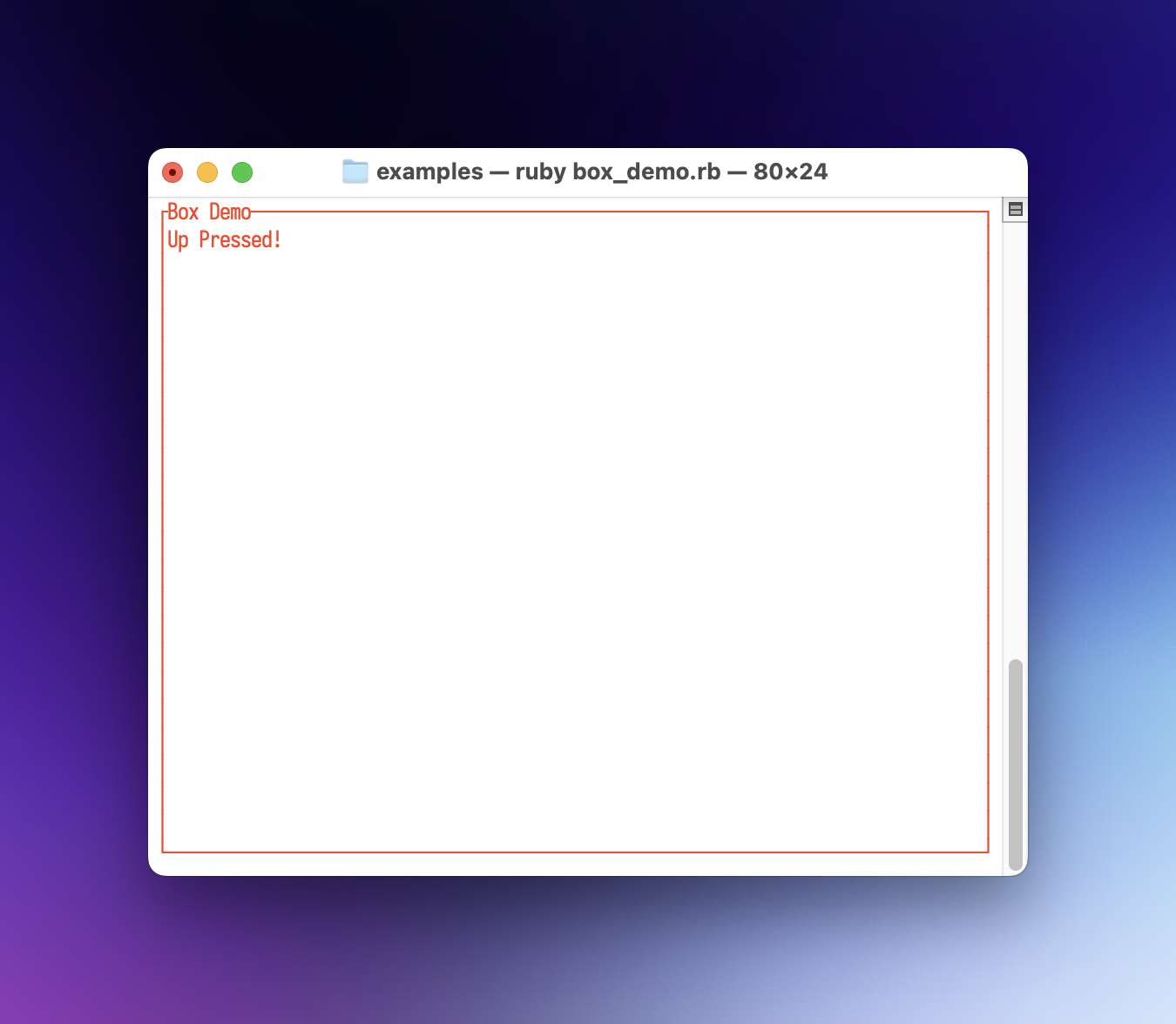 Demo Screenshot
Calendar Demo
A simple demo application for the Calendar widget.
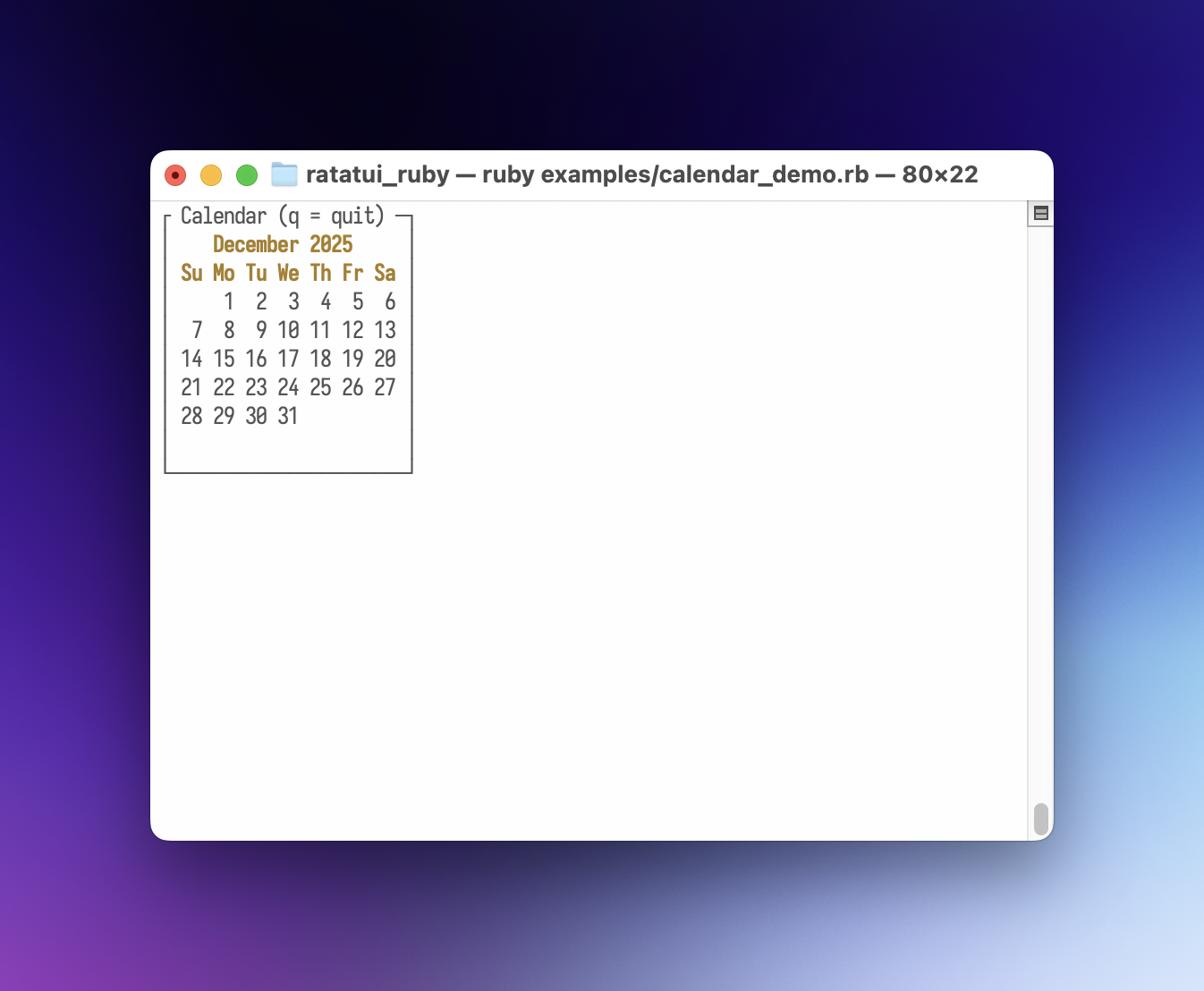 Screenshot
Chart Demo
Demonstrates the Chart widget with both scatter and line datasets, including custom axes.
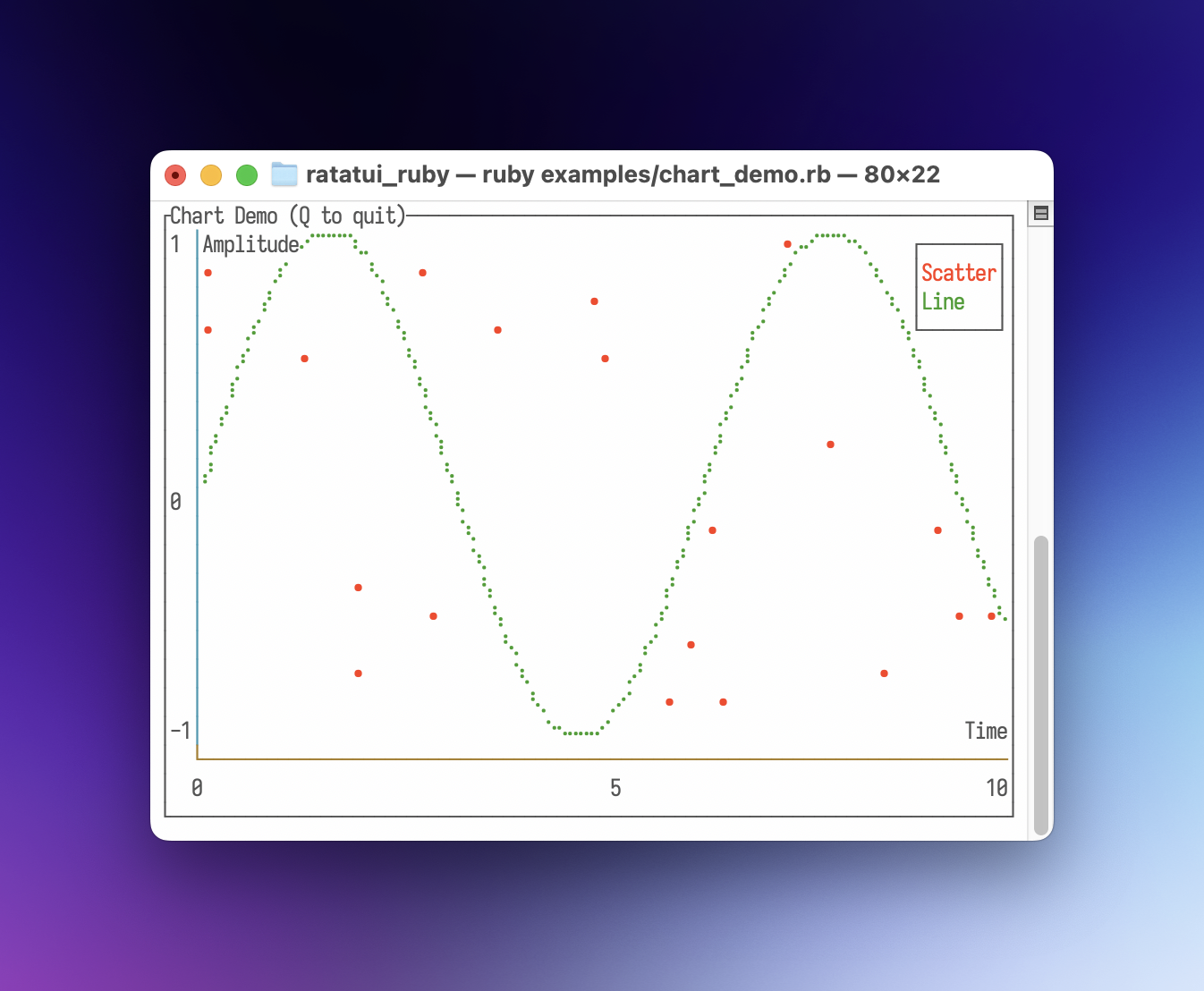 Screenshot
Custom Widget (Escape Hatch)
Demonstrates how to define a custom widget in pure Ruby using the render(area, buffer) escape hatch for low-level drawing.
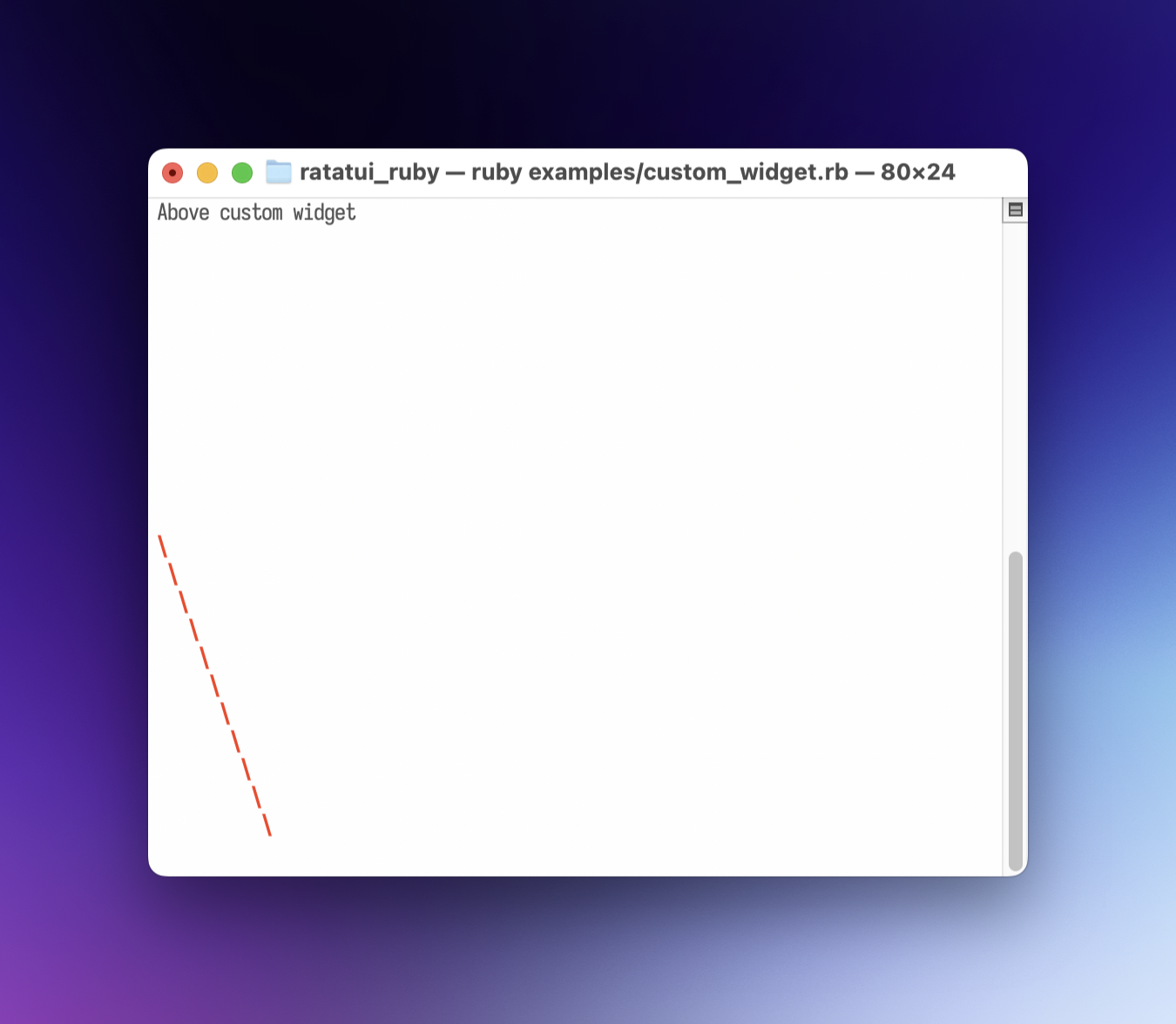 Widget Screenshot
Dashboard
Uses Layout, List, and Paragraph to create a classic sidebar-and-content interface.
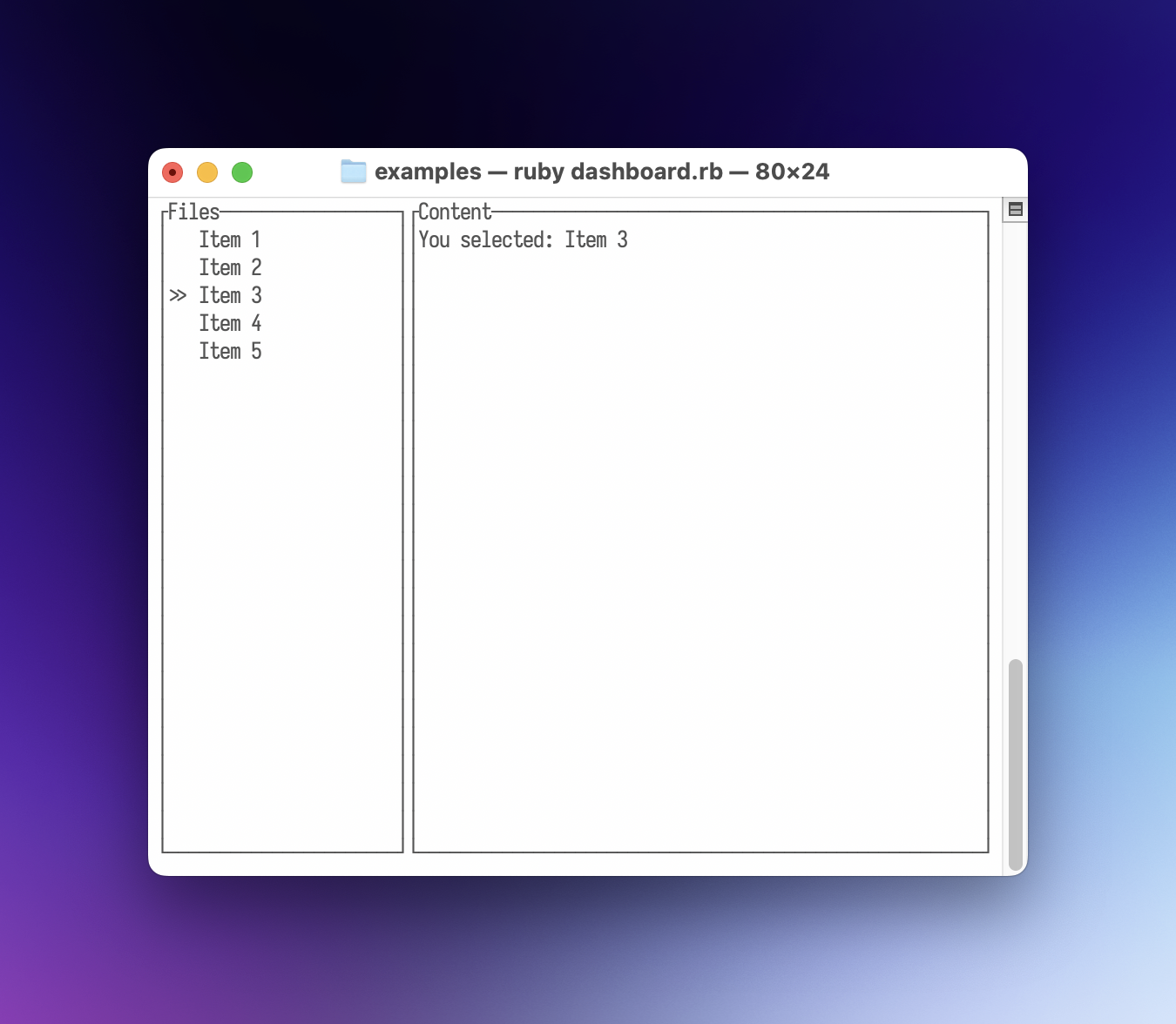 Screenshot
List Styles
Showcases advanced styling options for the List widget, including selection highlighting.
Login Form
Shows how to use Overlay, Center, and Cursor to build a modal login form with text input.
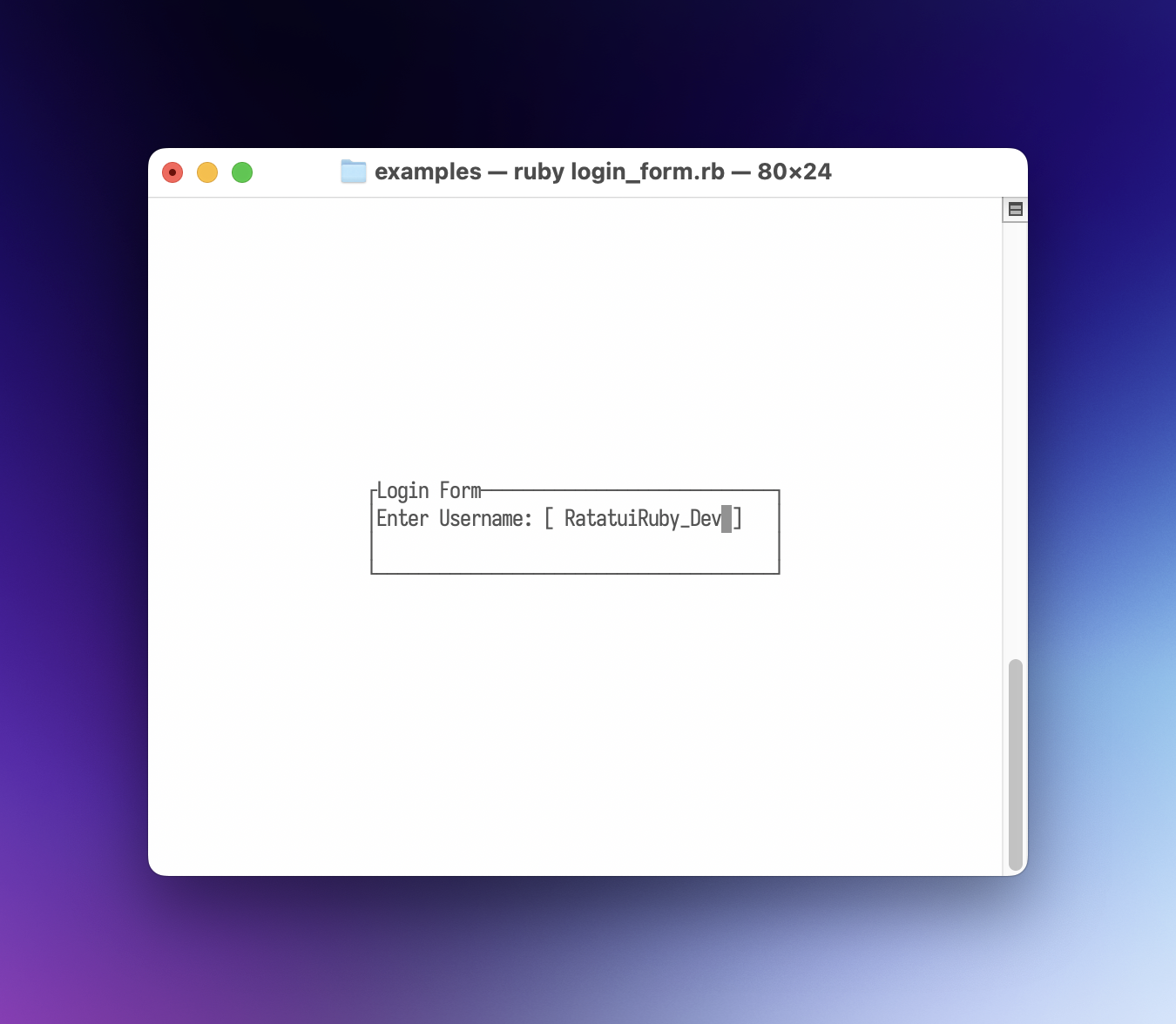 Form Screenshot
Map Demo
Exhibits the Canvas widget’s power, rendering a world map along with animated circles and lines.
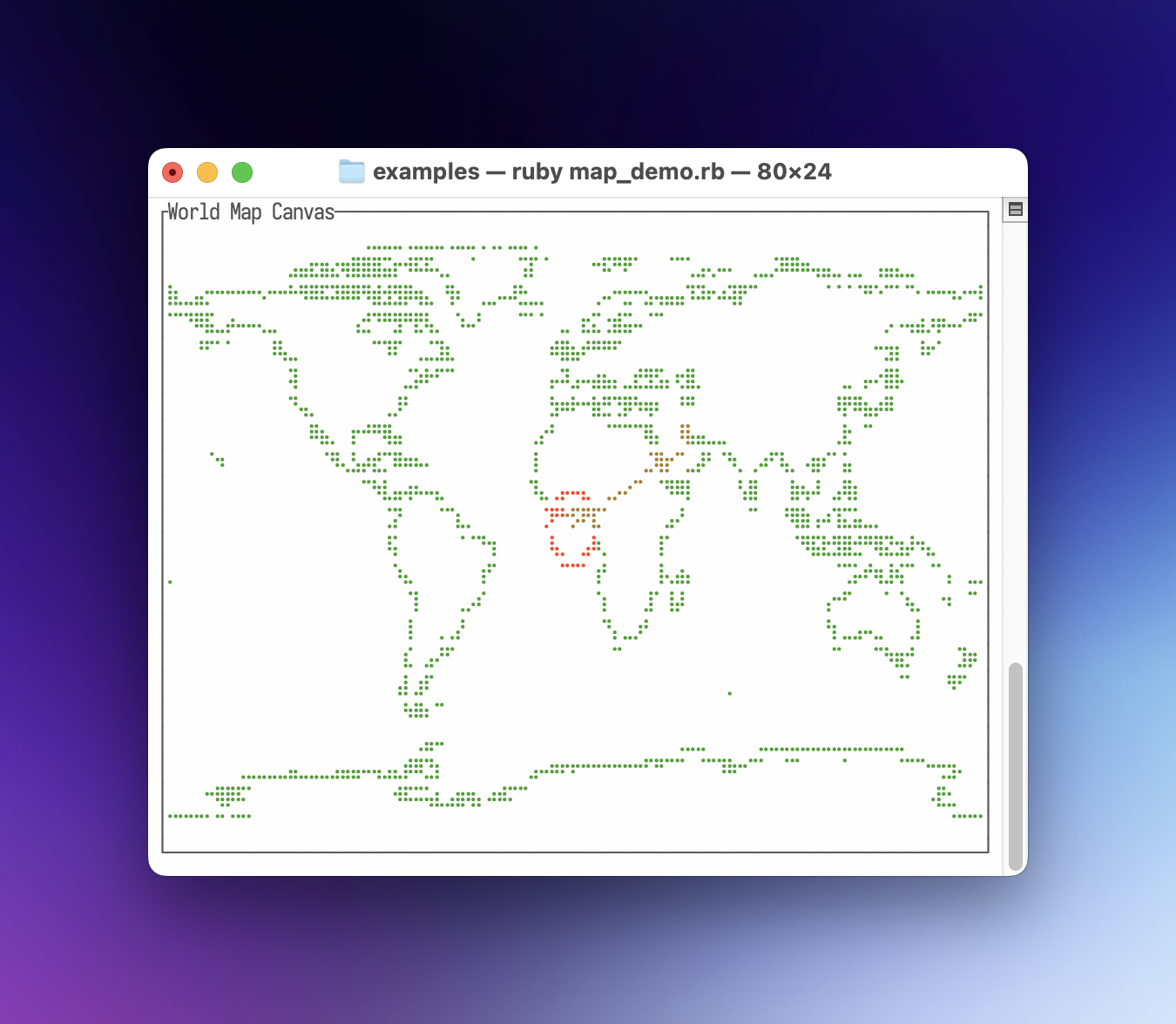 Demo Screenshot
Mouse Events
Detailed plumbing of mouse events, including clicks, drags, and movement tracking.
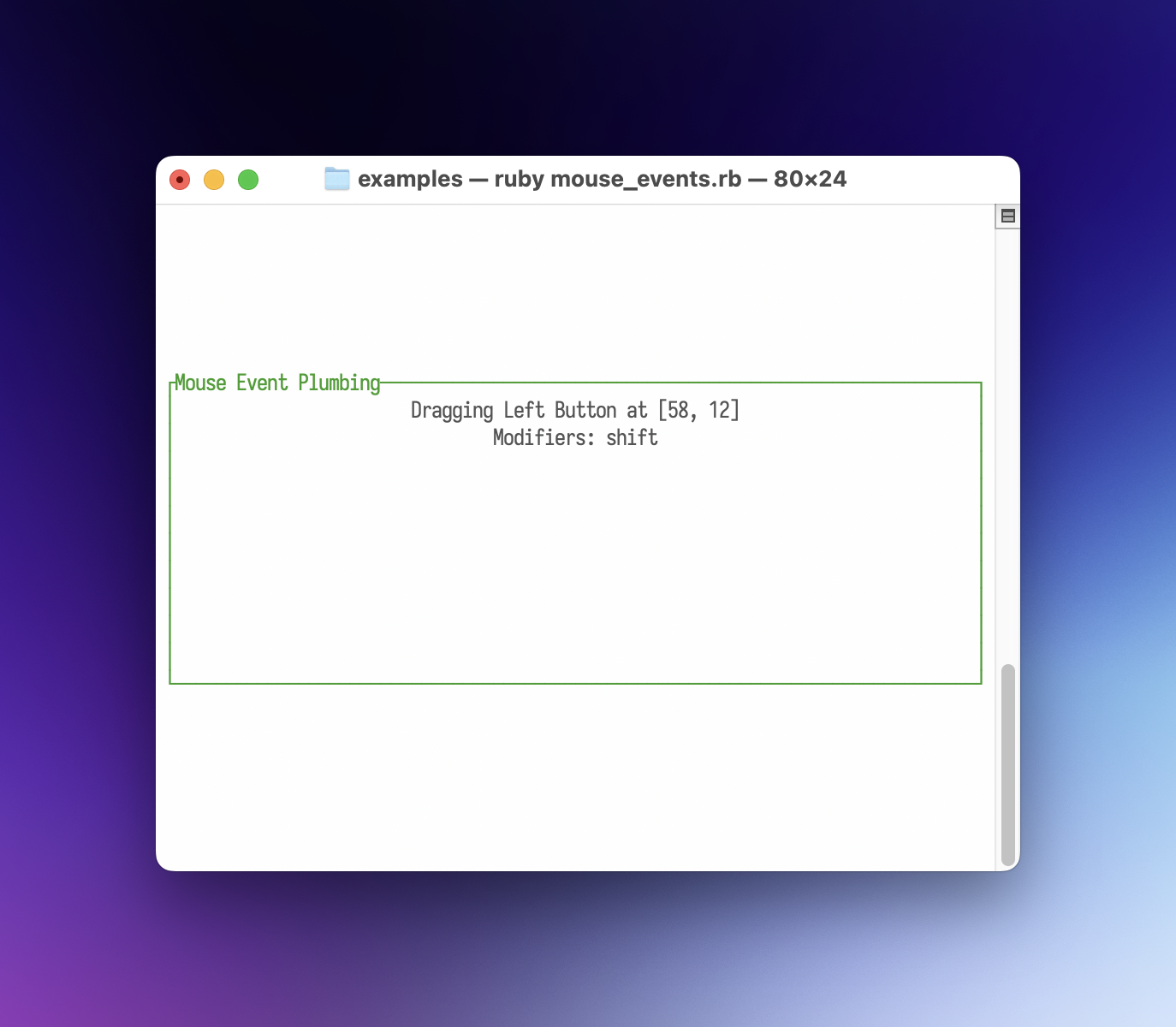 Events Screenshot
Popup Demo
Demonstrates the Clear widget and how to prevent “style bleed” when rendering opaque popups over colored backgrounds.
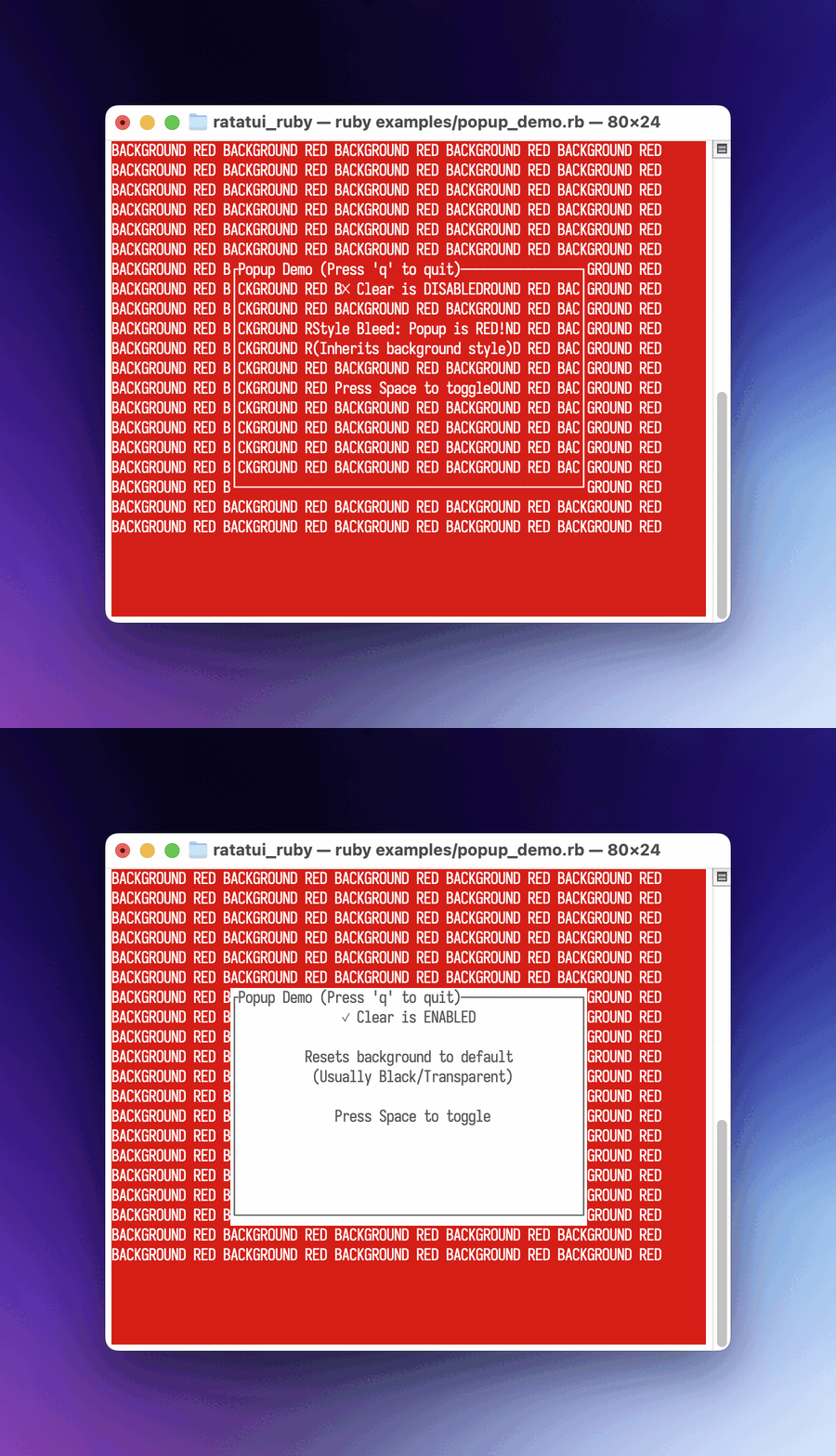 Demo Screenshot
Scrollbar Demo
A simple example of integrating the Scrollbar widget and handling mouse wheel events for scrolling.
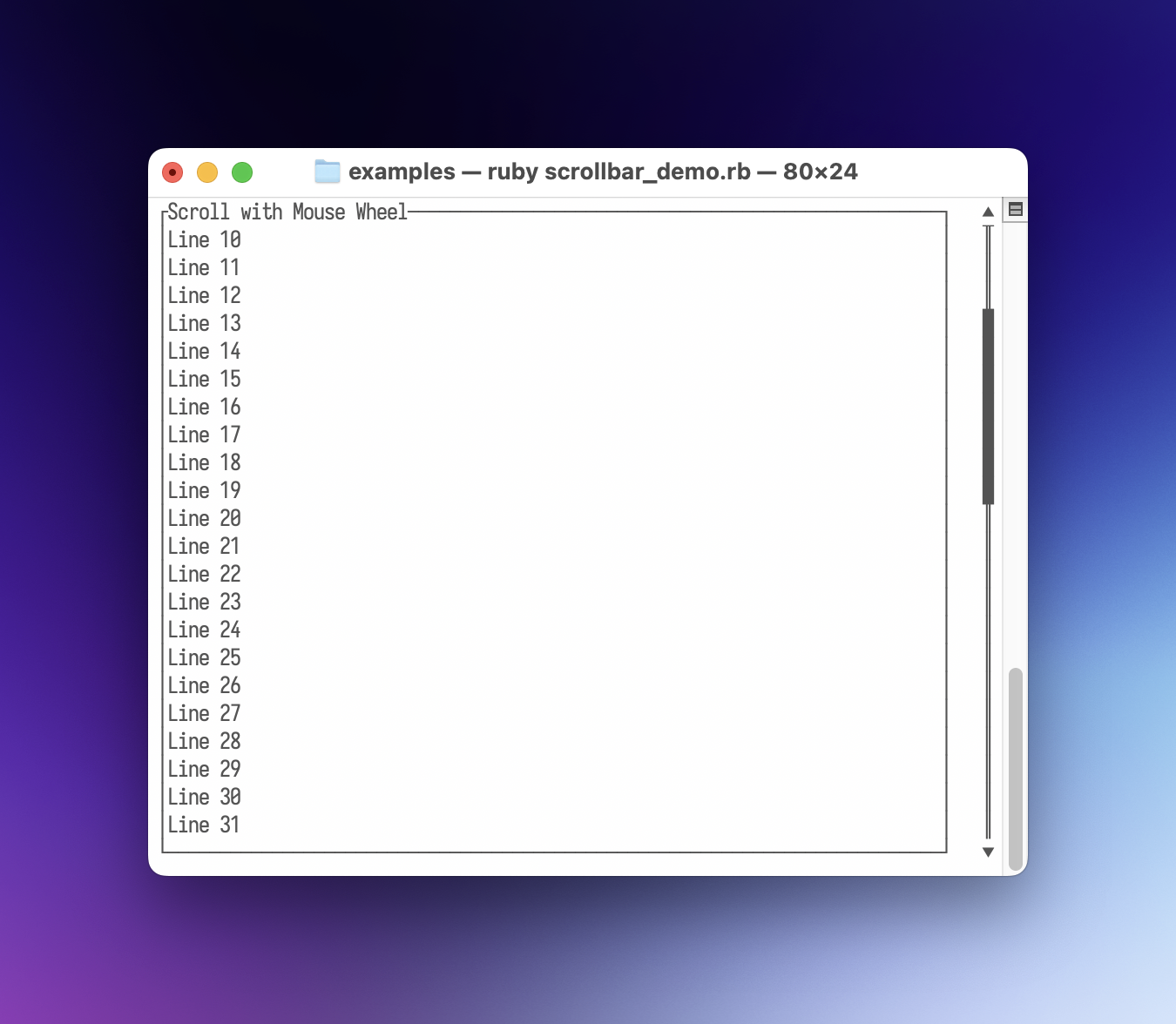 Demo Screenshot
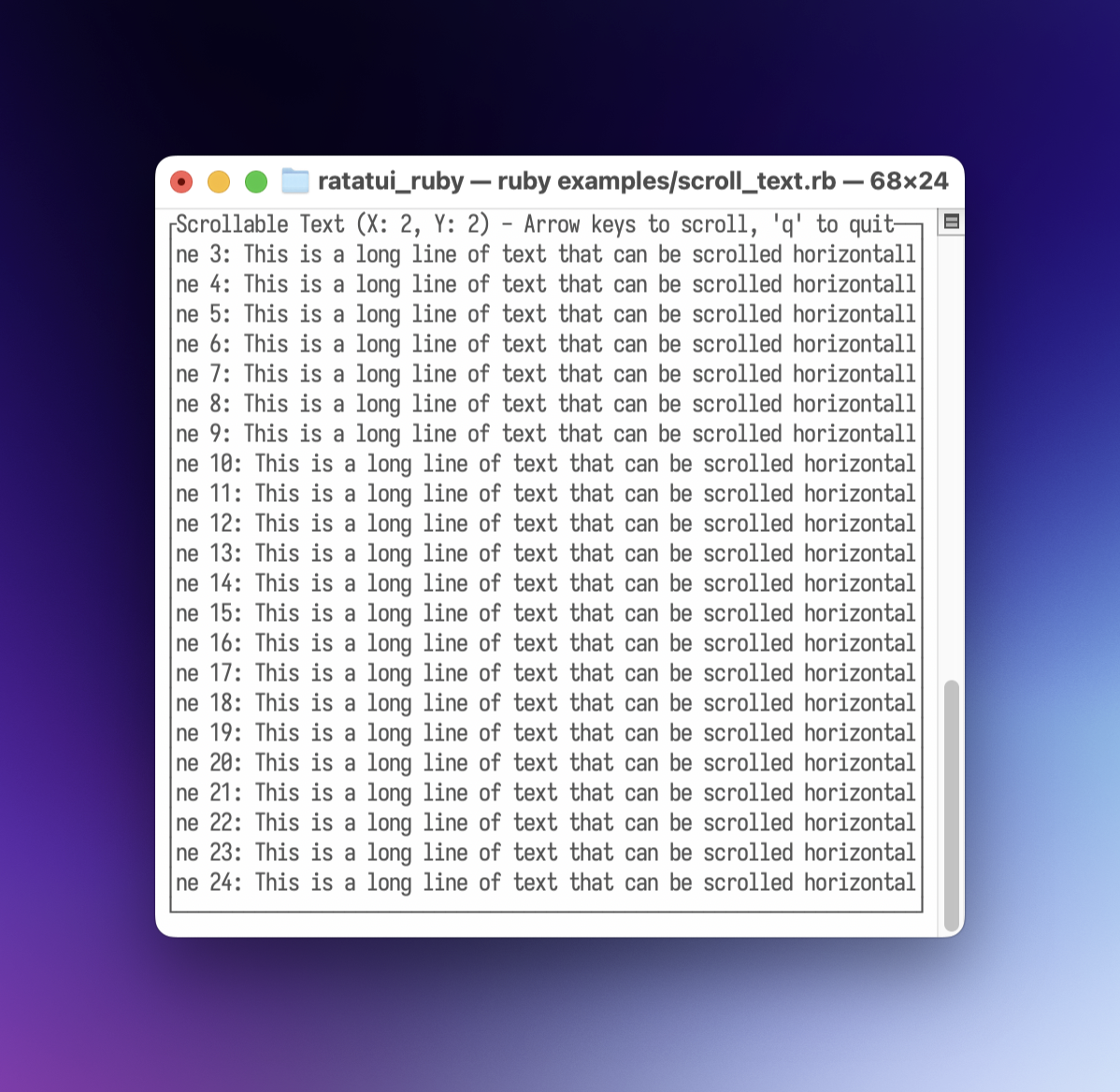
Scroll Text
Demonstrates the Paragraph widget’s scroll functionality, allowing navigation through long text content using arrow keys for both horizontal and vertical scrolling.
 Text Screenshot
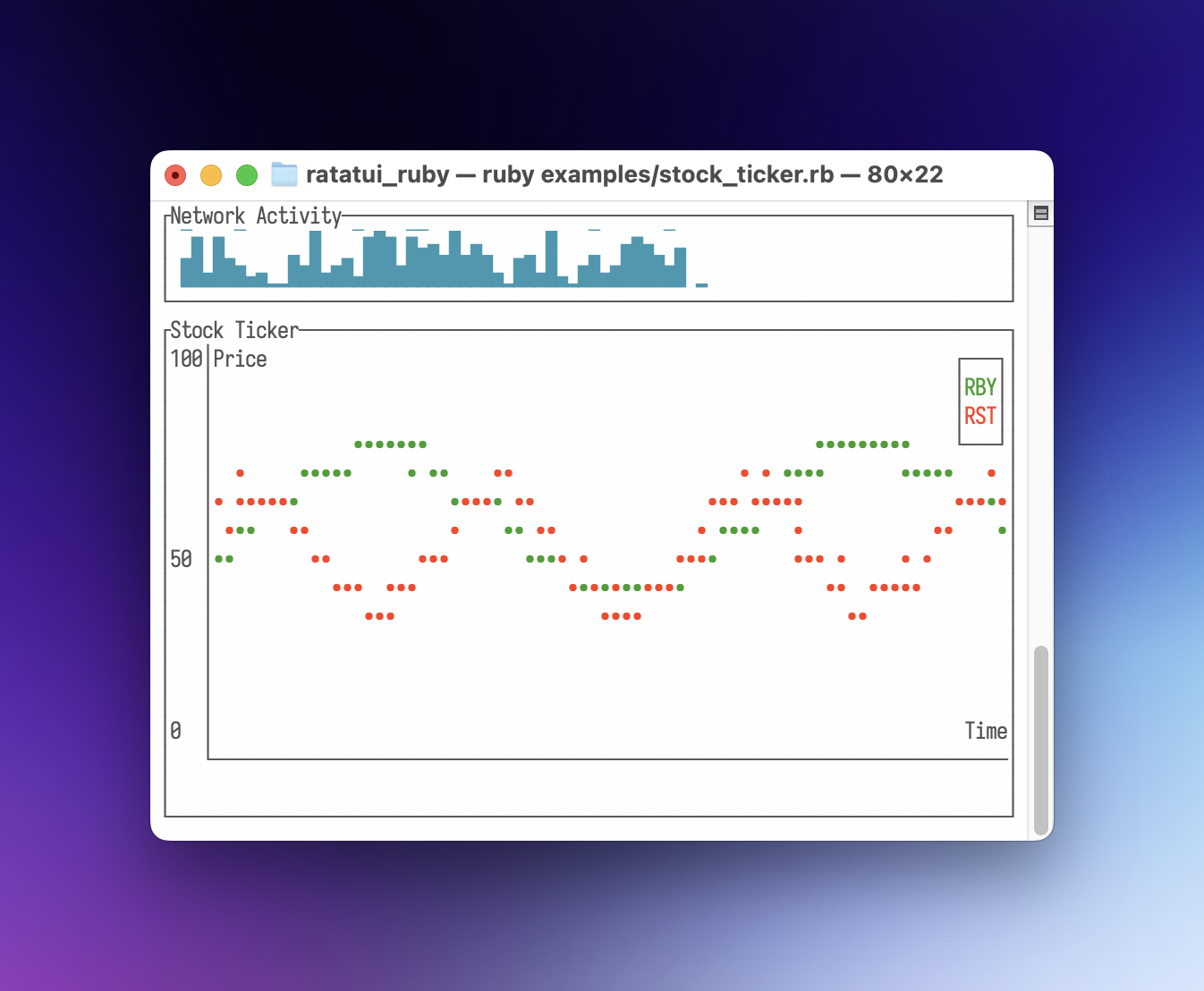
Stock Ticker
Utilizes Sparkline and Chart widgets to visualize real-time (simulated) data.
 Ticker Screenshot
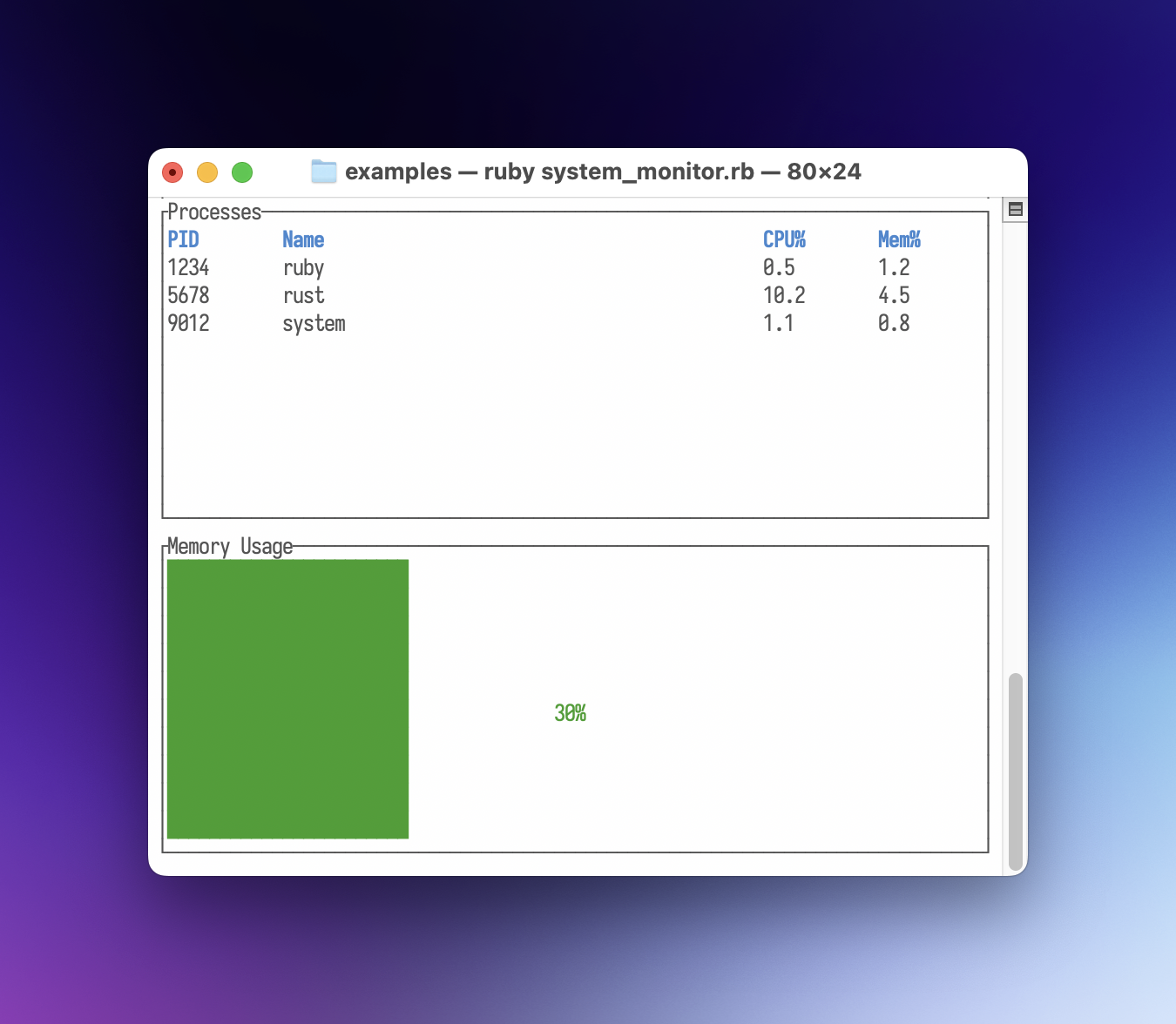
System Monitor
Combines Table and Gauge widgets in a vertical layout to create a functional system overview.
 Monitor Screenshot
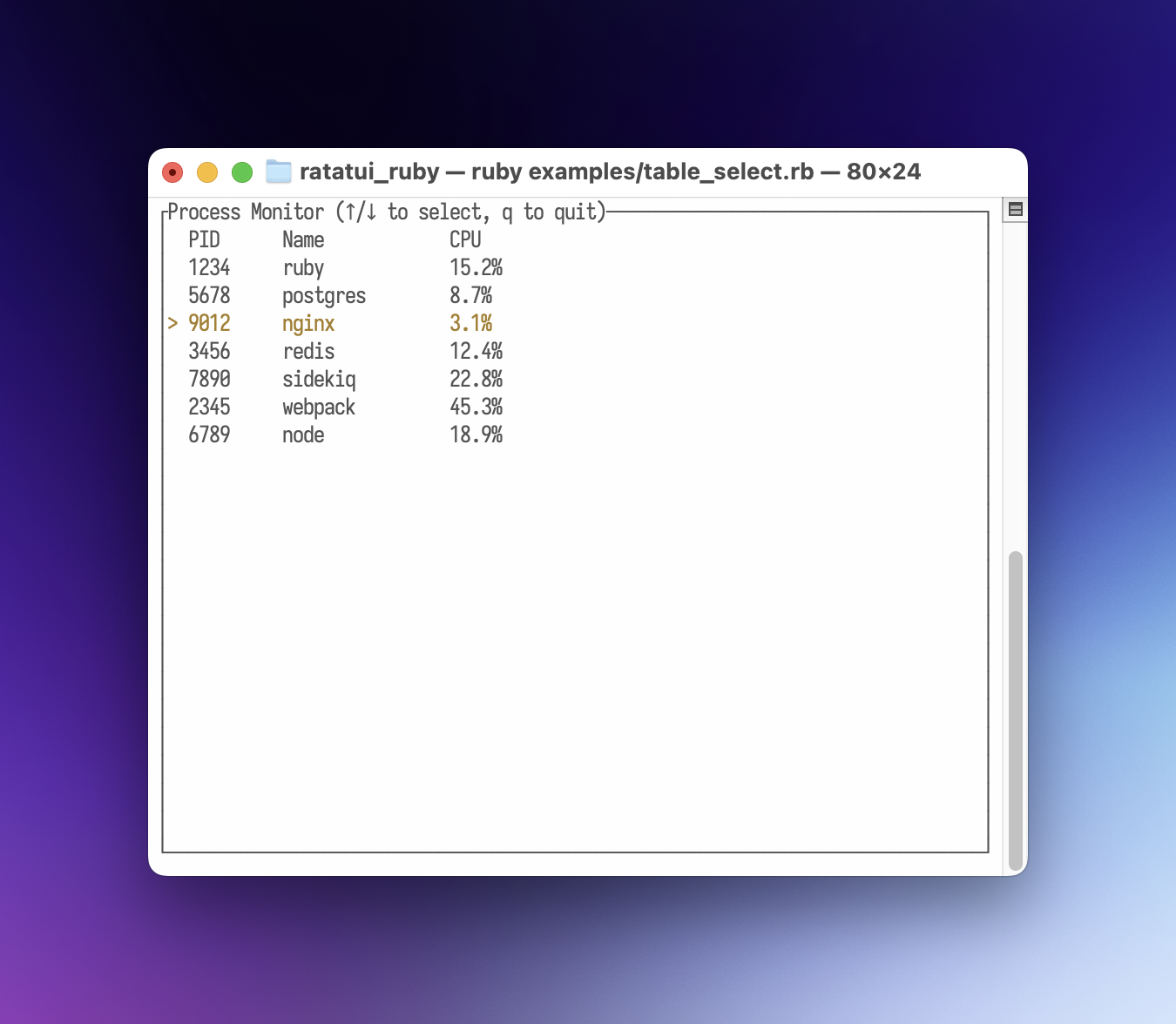
Table Select
Demonstrates interactive row selection in the Table widget with keyboard navigation, highlighting selected rows with custom styles and symbols.
 Select Screenshot